DiskSavvy Server allows one to setup a number of periodic disk space analysis jobs with each one configured to perform
one or more disk space analysis commands at specific time intervals. In order to add a periodic disk space analysis job,
press the 'Periodic Jobs' button located on the DiskSavvy Server home page and press the 'Add' button.

On the periodic job page, enter a unique periodic job name, specify the time interval and select one or more disk space
analysis commands to execute. In order to reduce the CPU load and memory usage on the host, DiskSavvy Server performs
selected disk space analysis operations sequentially, one after one while saving reports and executing conditional
disk space analysis actions if required.
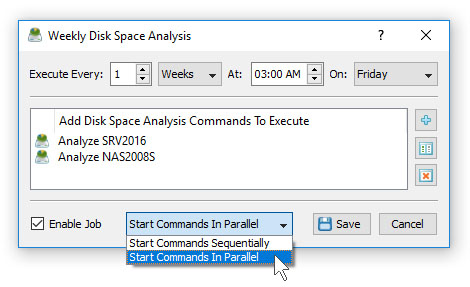
In addition, the user is provided with the ability to intentionally slow down disk space analysis operations, in order to
completely eliminate performance impact on production servers. To slow down a disk space analysis command, open the command
page, press the 'Options' button, select the 'Low Speed' performance mode and press the 'Save' button.