Exporting Reports to an SQL Database | ||||||||
DiskSorter Pro and DiskSorter Server provide the ability to export disk space analysis results to an SQL database via the ODBC database interface. In order to be able to export disk space analysis results to an SQL database, the user needs to configure the ODBC database interface on the main options dialog. 
In order to configure the ODBC interface, open the main options dialog, select the 'Database' tab, enable the ODBC database interface, enter the ODBC data source name, the ODBC user name and password to use to connect to the SQL database and then press the 'Verify' button to check the specified ODBC interface. 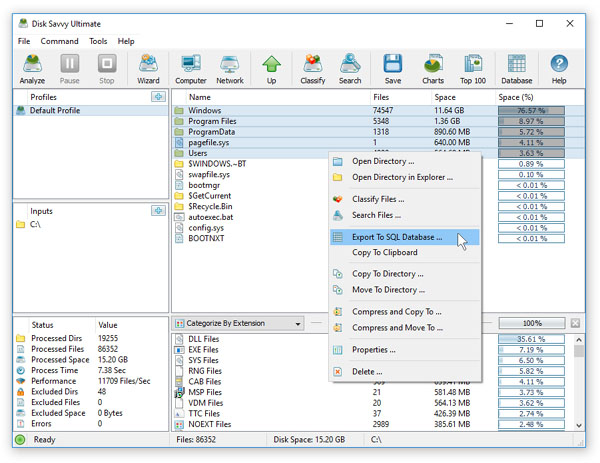
Once finished configuring the ODBC database interface, select one or more directories and/or files, press the right mouse button, select the 'Export To SQL Database' menu item and enter the name of the SQL database table to export disk space analysis results to. DiskSavvy will connect to the specified SQL database and export the selected disk space analysis results to the specified SQL database table. 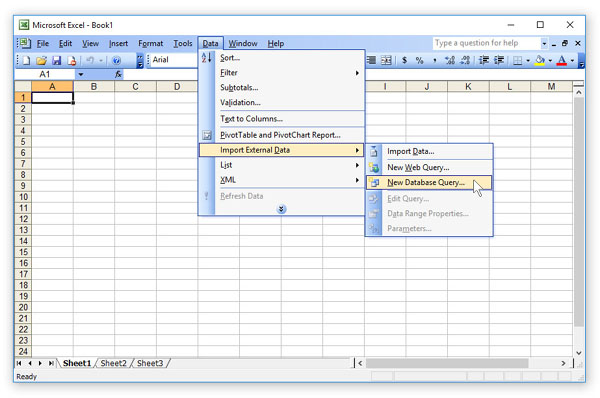
In order to import disk space analysis results from an SQL database to Microsoft Excel, select the menu 'Data - Import External Data - New Database Query' menu item, select the ODBC data source to import the data from, select the SQL database table name that was specified during the export operation, select SQL database table columns to be imported, optionally select the data sorting mode and press the 'Finish' button. 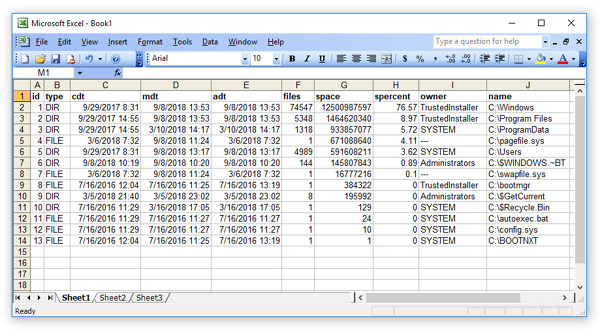
For each disk space analysis result, DiskSavvy exports to the SQL database the following columns of data: a unique result ID, the type of the result (DIR or FILE), the creation date, the last modification date, the last access date, the total number of files in a directory, the total size of all files in the directory, the percentage of the disk space used by all files in the directory, the user name of the file or directory and the full name.
|

|

|


