In order to analyze disk space usage in a disk or directory, press the 'Analyze' button located on the main toolbar, specify
the directory to analyze and press the 'Analyze' button. In order to analyze multiple directories, disks and/or network shares,
press the 'Add' button and add all disks, directories and/or network shares that should be analyzed.
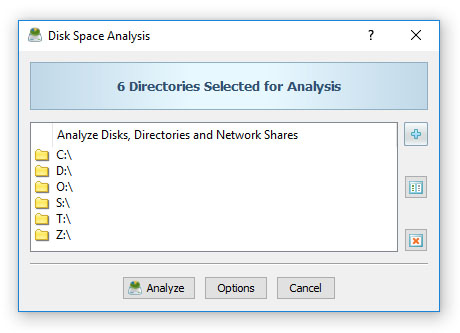
Depending on the number of files that should be analyzed, the disk usage analysis process may take from a couple of seconds for
thousands of files to a few minutes for large file systems containing millions of files. During the disk space analysis process,
DiskSavvy will display the progress of the disk space analysis operation showing the total number of processed files and the
amount of processed disk space.
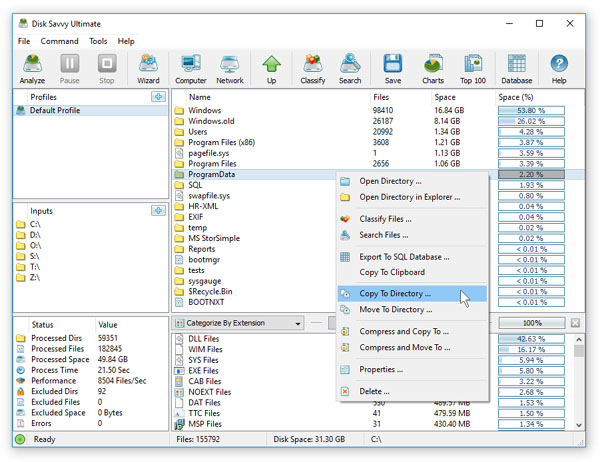
Once the disk space analysis process is completed, DiskSavvy will display a hierarchy of analyzed disks, directories and files
sorted by the amount of the used disk space. For each directory, DiskSavvy will show the name of the directory, the total number
of files in the directory and all subdirectories and the total amount of the disk space used by all files in the directory and
all subdirectories.
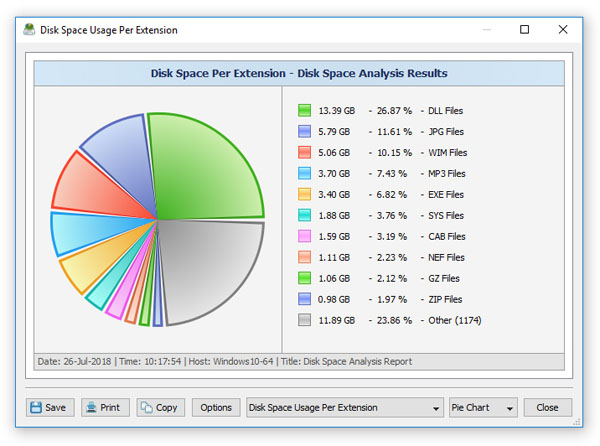
Press the 'Charts' button to display a pie chart showing disk space usage statistics for the current directory view and selected
file categories. Click on a directory item to open the directory and show nested subdirectories and files. Select one or more
directories and/or files and press the right mouse button to perform a file management operation on the selected items.
For example, select one or more files, press the right mouse button and select the 'Copy To Directory' menu item to cop
the selected files to another location.