By default, DiskSavvy shows a structured hierarchy of analyzed directories sorted by the used disk space and allows
one to browse subdirectories in order to identify which subdirectories and files are using significant amounts of
the disk space. In addition, DiskSavvy provides the ability to display a flat list of top directories sorted by
the amount of the used disk space.
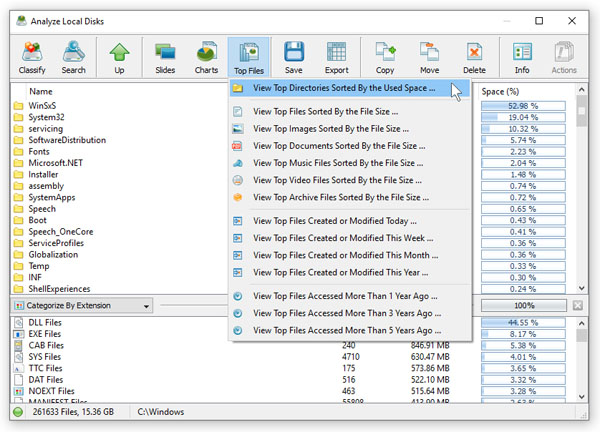
In order to display the list of top directories, analyze one or more disks or network shares, press the 'Top Files' button
located on the main toolbar and select the 'View Top Directories' menu item. For each directory, the list of top directories
shows the full directory name, the user name, the total number of files in the directory and all subdirectories and the total
amount of the used disk space for the directory and all subdirectories.

In order to export the list of top directories to a report file, press the 'Export' button located on the top directories dialog,
select an appropriate report format, enter a file name to export the report to and press the 'Save' button.